

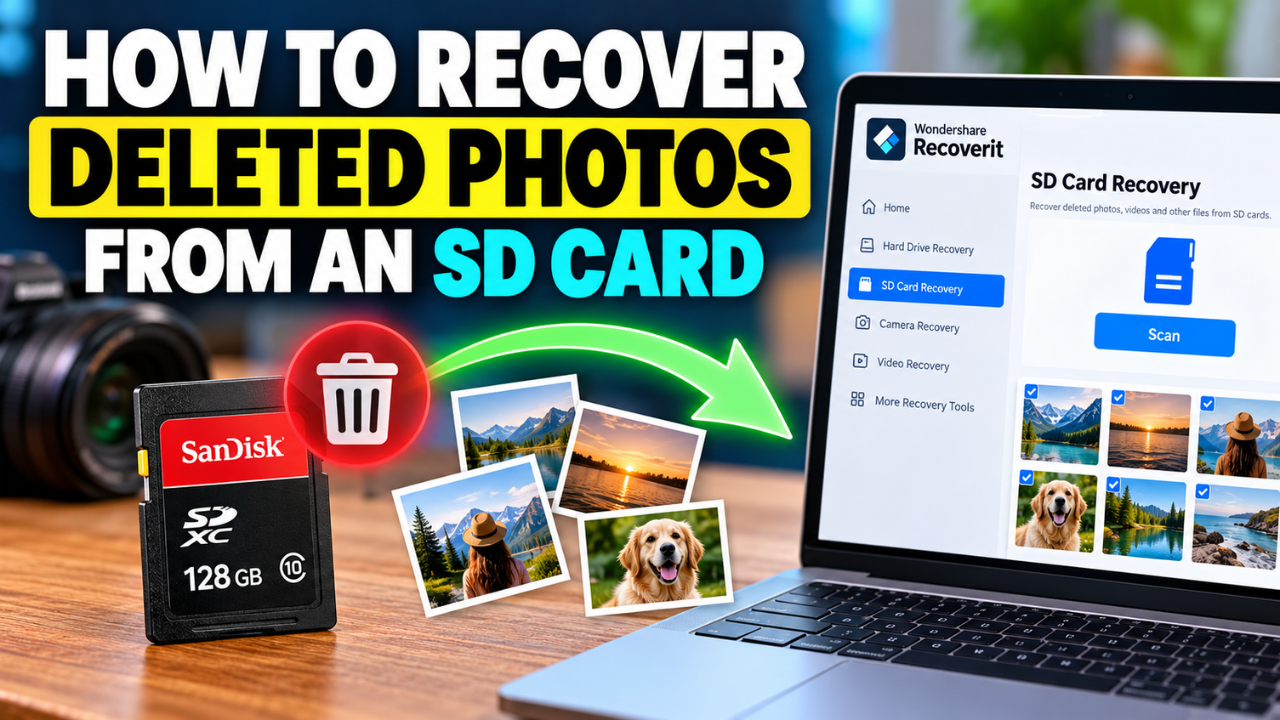
The worst moment in photography is not a missed shot – it is the photos you already took disappearing. You plug your SD card into the computer, and the folder that should hold today’s shoot is empty or missing the images you were counting on. Maybe you hit delete by accident, maybe the camera glitched, or maybe a careless format wiped the card’s index.
Before you panic: deleted photos are almost never erased on the spot. They stay on the card until new data overwrites them. With the right steps, you can recover deleted photos from an SD card in most situations – and this guide shows you exactly how.
Why Deleted Photos Are Usually Recoverable
When you delete a photo, the SD card’s file system marks that space as available. The photo’s data remains physically on the card. Think of it like removing a book from a library catalog: the book is still on the shelf; the catalog just no longer points to it. As long as nothing new is written over that shelf space, the photo can be found again.
This is why the first rule matters so much: stop using the card. Every photo you take, every file you copy, every app that writes to the card can overwrite the deleted data and make recovery harder. Remove the card and keep it untouched until you scan it.
Step-by-Step: Recover Deleted Photos from an SD Card
Step 1 – Connect the Card and Choose the Right Recovery Mode
Use a card reader to connect the SD card to your computer, and then launch Wondershare Recoverit. Choose the SD Card Recovery mode from the left sidebar. The tool automatically recognizes cards from cameras, GoPros, and drones, and adapts the scan to the device.
Step 2 – Run the Scan
Select your card and click Scan. Recoverit uses AI-accelerated scanning to find deleted photos quickly and thoroughly, rebuilding device-specific file patterns as it goes. Depending on your card’s size and how much data was on it, the scan takes a few minutes – you can watch results appear in real time.
Step 3 – Preview and Filter Your Photos
When the scan completes, the results include every recoverable file. Use the AI search box and filters to focus on photos: filter by File Type to show only images, or by Time to narrow to the date of your shoot. This is where Recoverit’s AI-powered preview shines – it shows thumbnails for common formats and even RAW and HEVC images, so you can confirm photo quality before saving.
Step 4 – Recover to a Safe Location
Select the photos you want and click Recover. Save them to a different drive than the SD card – never back onto the same card, which could overwrite the data you are trying to save.
What If the Quick Scan Does Not Find Everything?
Deleted photos recovered from a quick scan are often the low-hanging fruit. If some images are still missing, run a deep scan on the same card. Deep scans read the raw sectors and can find photos that were deleted longer ago or stored in fragmented areas. It takes longer, but it is the step that uncovers the photos the first pass missed.
If your photos were on a camera’s memory card, the camera data recovery covers the same workflow for camera-specific storage, and the SD card recovery is the general tool for any card.
What to Do About Overwrite or Damaged Photos
If a photo comes back but will not open, it may have been partially overwritten or corrupted during recovery. Recoverit auto-repairs corrupt photos during preview, so many damaged images are fixed before you even save them. For images that need more help, the repair module handles common formats directly. A “recovered but unreadable” photo is still worth keeping – repair often brings it back to life.
Common Mistakes That Cost Photos
- Keeping the card in the camera. Even browsing photos in-camera can trigger writes. Remove the card.
- Reformatting before recovery. Formatting rebuilds the file system and can overwrite your photos. Never format first.
- Recovering to the same card. Saving recovered files back onto the SD card risks destroying the remaining recoverable data.
- Panicking and trying random tools. Each tool that writes to the card lowers your chances. Pick one reliable, read-only tool.
How to Prevent Photo Loss on SD Cards
- Back up after every shoot. Copy photos to a computer or cloud drive the same day.
- Use two-slot cameras. If your camera supports it, mirror to a second card.
- Eject properly. Always use “safely remove” or power off the camera before pulling the card.
- Format in the camera. In-camera formatting matches the camera’s file system, reducing corruption risk.
- Keep spare cards. If one card misbehaves, switch and deal with the problem card calmly.
Conclusion
Deleted photos on an SD card are usually recoverable – the data stays on the card until overwritten. Stop using the card, connect it to a computer, and run a proper scan. With Wondershare Recoverit, you can recover deleted photos from an SD card in four steps: connect, scan, preview, and recover. Filter by type and time to find your shots fast, preview them with AI-powered accuracy, and save them to a safe drive. The photos you thought you lost are probably still there – and they are worth the ten minutes it takes to bring them back.
