

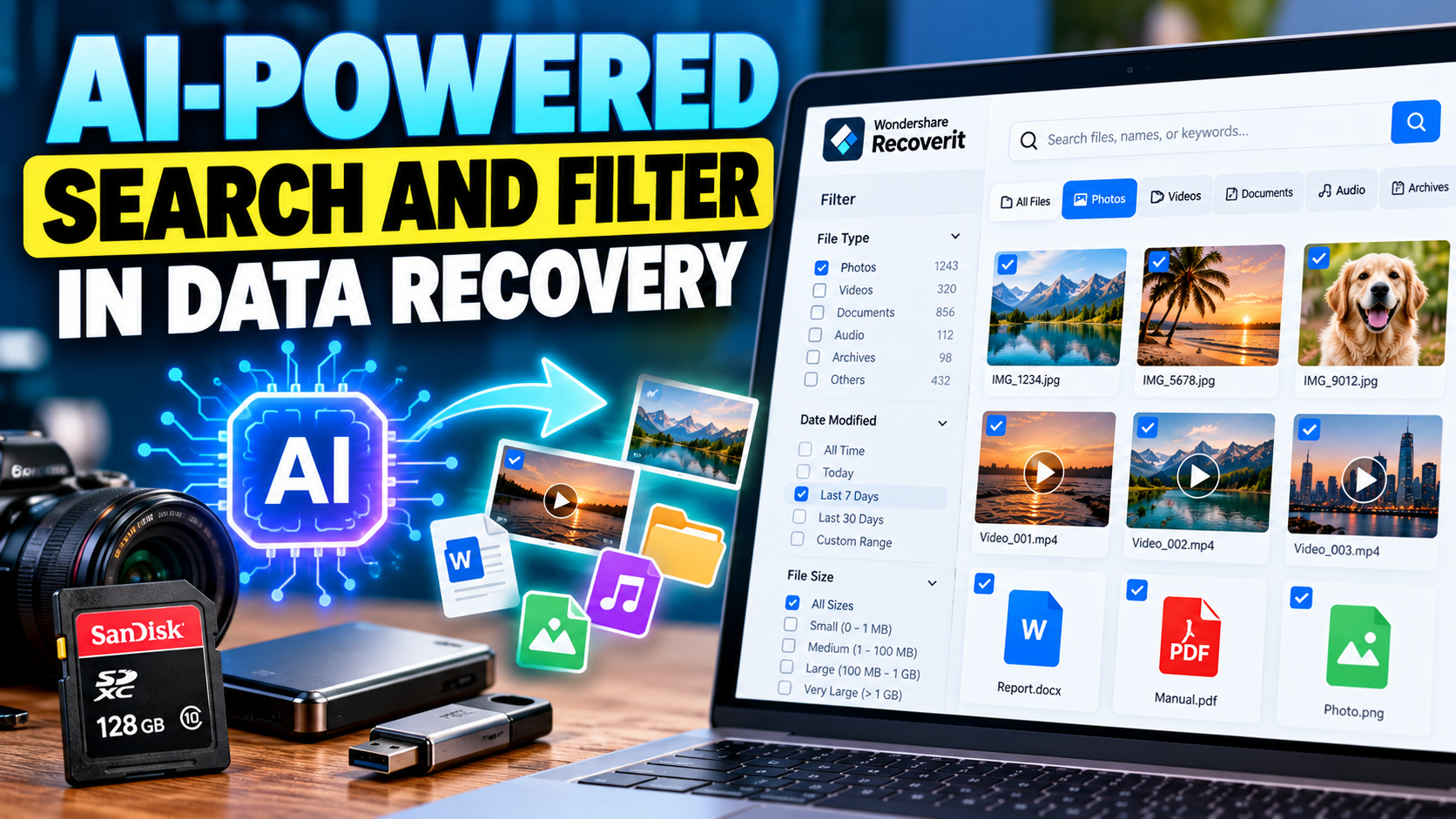
Modern data recovery software does more than scan for deleted files – it helps you find the right ones. The tool that makes this possible is AI-powered search and filter: a smart layer on top of the scan results that understands file types, timing, and content, and lets you narrow millions of recoverable items down to the exact files you need.
If you have ever run a recovery scan and felt overwhelmed by the results, AI search and filter is the feature you have been missing. Here is what it is, how it works, and why it has become essential.
The Problem: Scans Find Everything, Including Noise
When recovery software scans a drive, it does not just find your deleted files – it finds everything: old system files, browser caches, app remnants, thumbnails, and documents deleted years ago. A scan of a busy drive can easily return tens of thousands of items. Buried in that noise are the files you actually care about.
Without a way to narrow results, you face an impossible choice: browse endlessly, or risk recovering the wrong files. This is where AI search and filter steps in.
What AI Search and Filter Actually Does
AI search and filter combines two capabilities that work together:
- AI search analyzes the scan results and lets you type in what you are looking for – a filename, extension, or keyword – with results updating instantly as you type. It works with partial and fuzzy matches, so you do not need the exact name.
- Smart filters let you narrow results by concrete criteria:
- File type – photos, videos, documents, audio, archives, and more.
- Time – files created, modified, or deleted within a date range.
- File size – from tiny text files to large video files.
Together, they turn “a thousand files” into “the three files I need.”
The Difference Between Searching and Filtering
Search and filtering are complementary, not the same thing. Search matches what you type against the file list – useful when you remember a name or extension. Filtering applies rules – type, time, size – that describe the file even when you cannot name it. The most effective recovery uses both: search to get close, filters to get precise. A file you cannot name at all is found entirely by filters; a file you can partially name is found fastest by combining the two.
How It Works Inside Recoverit
Wondershare Recoverit includes AI-powered search and filter as a core part of its recovery workflow. Here is the flow:
1. Scan Your Device
Select the drive, SD card, or camera memory you lost data from, and run the scan. Recoverit’s AI-accelerated scanning finds deleted, formatted, and corrupted files across more than 1,000 formats.
2. Search the Results
When the scan completes, type into the search box. Look for a filename, an extension like “.docx” or “.mp4”, or a keyword you remember. The results narrow live as you type, so you can home in on your target in seconds.
3. Apply the Filters
Use the filter panel to remove everything you do not need:
- Filter by File Type to see only photos or only videos.
- Filter by Time to focus on the week the files were lost.
- Filter by File Size to isolate large video files or small documents.
4. Preview and Recover
Preview the shortlisted files to confirm they are intact, then recover them to a different drive.
![]() Why It Is Called “AI-Powered”
Why It Is Called “AI-Powered”
The search and filter engine is AI-powered because it learns from the data it scans. Instead of matching strings blindly, it uses the structure and metadata of the recovered files – file signatures, headers, timestamps, and content clues – to classify and rank results. That is why it can find a deleted video by its format and size even if you have forgotten its name, or surface a document from a specific month even when thousands of files share similar names.
This intelligent classification is what separates modern recovery software from the simple “find by filename” tools of the past.
Common Questions about AI Search and Filter
Does it work on SD cards and memory cards too? Yes. The same search and filter engine works on results from any scanned device, including SD and memory cards – useful when you are recovering photos from a camera card and want only the images from a specific trip.
Can I combine search with filters? Absolutely. Search narrows by name or keyword, then filters further by type, time, or size. Using them together is the fastest way to find a file.
Do I need the exact filename? No. Partial words, extensions, and even just the file type are enough to narrow results effectively.
Is it available on Windows and Mac? Yes. Both the Windows version and Mac version of Recoverit include the full search and filter experience, and the SD card recovery module applies it to card scans as well.
A Quick Practical Example
Imagine you scanned a 128GB SD card and the results show 18,000 files. You know the only thing you need is a five-minute video recorded last Tuesday. Filter by video type – the list drops to 1,200. Filter by the date range around Tuesday – it drops to 14. Sort by size and the 300MB file at the top is almost certainly your clip. Preview it, recover it, done. No filename, no scrolling, no guesswork – just three filters and a preview.
Conclusion
AI-powered search and filter is the feature that makes recovery results usable. It turns an overwhelming list of thousands of files into a shortlist you can act on – search by what you remember, filter by type, time, and size, preview, and recover. With Wondershare Recoverit, this smart layer is built into every scan, whether you are recovering from a hard drive, an SD card, or a memory card. If you have ever abandoned a scan because the results were too much to dig through, AI search and filter is the reason to try again.
