

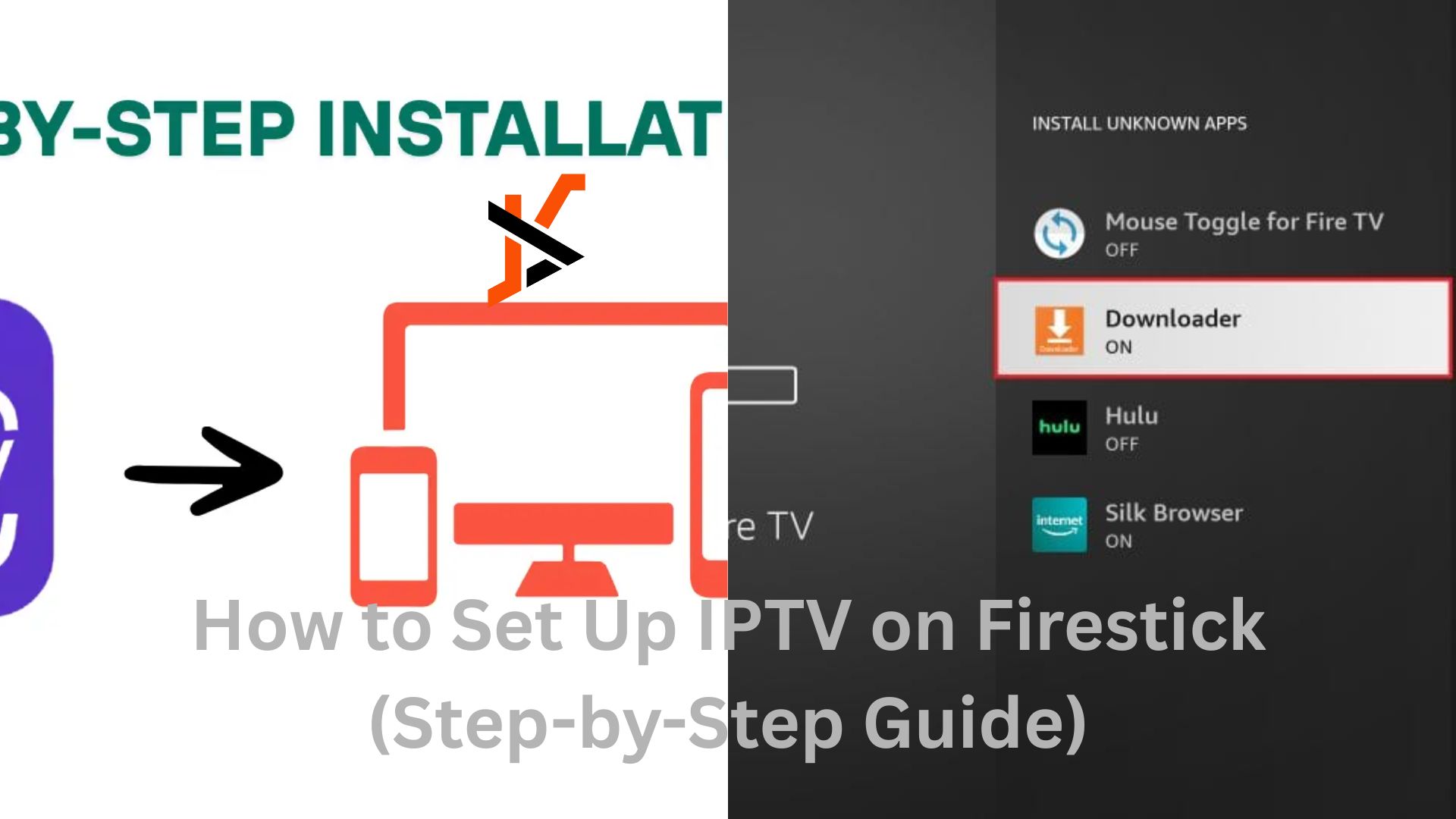
Setting up IPTV on a Firestick is one of the easiest ways to turn your TV into a complete entertainment hub. With the right setup and a reliable IPTV subscription, you can stream live TV, sports, movies, and series directly on your Firestick in high quality. This step-by-step guide is designed to help users who want a smooth experience using a trusted provider like IPTV UK services, covering everything from preparing your Firestick to installing IPTV apps and logging in correctly.
Whether you’re a beginner or just want a clean, reliable setup, this guide has you covered.
What Is IPTV and Why Use It on Firestick?
IPTV (Internet Protocol Television) delivers TV channels and on-demand content over the internet instead of traditional cable or satellite. When combined with a Firestick, IPTV becomes:
- Easy to install
- Fast and smooth
- Portable (use it on any TV)
- Cost-effective compared to cable
A Firestick is especially popular because it’s affordable, powerful, and supported by many IPTV apps.
What You Need Before You Start
Before setting up IPTV on Firestick, make sure you have:
- An Amazon Fire TV Stick
- A stable internet connection (minimum 15–20 Mbps recommended)
- An IPTV subscription (M3U URL or Xtream Codes)
- A TV connected to your Firestick
- An Amazon account signed in
Once these are ready, you can start the setup.
Step 1: Prepare Your Firestick for IPTV Apps
By default, Firestick blocks apps from outside the official Amazon App Store. IPTV apps usually require enabling one setting first. Many users in Canada rely on third-party IPTV applications to access live TV and on-demand content, especially when using services like IPTV Canada available at https://primestelly.ca, which require manual installation on Firestick.
Enable Apps from Unknown Sources
- Turn on your Firestick
- Go to Settings
- Select My Fire TV
- Click Developer Options
- Turn ON:
- Apps from Unknown Sources
- ADB Debugging
If you don’t see Developer Options:
- Go to About
- Click Fire TV Stick 7 times to unlock it
This step is essential and only needs to be done once.
Step 2: Install the Downloader App
The Downloader app lets you install IPTV apps directly.
How to Install Downloader
- From the Firestick home screen, select Search
- Type Downloader
- Install the app with the orange icon
- Open Downloader
- Allow permissions when prompted
Downloader is safe, widely used, and required for most IPTV setups.
Step 3: Choose the Best IPTV App for Firestick
There are many IPTV apps available. The best choice depends on what login details you have.
Popular IPTV Apps for Firestick
- TiviMate – Best for live TV and EPG
- IPTV Smarters Pro – Beginner-friendly
- IBO Player – Clean and fast
- XCIPTV Player – Simple and lightweight
Most IPTV providers recommend one of these.
Step 4: Install an IPTV App on Firestick
Here’s the general process (same for most IPTV apps).
Install via Downloader
- Open Downloader
- Enter the app’s download URL or code
- Click Go
- Wait for download
- Click Install
- Open the app after installation
After installation, you can delete the APK file to save storage.
Step 5: Log In to Your IPTV App
Once the app is installed, you’ll need to log in using the details provided by your IPTV service.
Login Methods Explained
Option 1: Xtream Codes API (Recommended)
You’ll need:
- Username
- Password
- Server URL
This method is fast, stable, and loads EPG automatically.
Option 2: M3U Playlist URL
You’ll need:
- M3U URL
- Playlist name
This works well but may require manual EPG setup.
Most users should choose Xtream Codes if available.
Step 6: Load Channels and EPG
After logging in, the app will begin syncing:
- Live TV channels
- Movies and series (if included)
- EPG (TV guide)
This can take a few seconds to a couple of minutes depending on your internet speed. Users with high-quality IPTV services, such as those available at https://primes-hd.co.uk, may experience faster loading times and smoother channel synchronization.
Once loaded, restart the app for best performance.
Step 7: Optimize IPTV Settings on Firestick
To get smooth streaming and avoid buffering, adjust a few settings.
Recommended IPTV App Settings
- Player: Hardware decoder
- Buffer size: Small or Medium
- Output format: HLS / MPEG-TS (auto)
- EPG refresh: Once per day
Firestick Performance Tips
- Restart Firestick once a week
- Close background apps
- Keep at least 1 GB free storage
- Use 5GHz Wi-Fi if available
Step 8: Use a VPN (Optional but Recommended)
A VPN can help with:
- ISP throttling
- Privacy protection
- Stable streaming
If you use a VPN:
- Choose a nearby server
- Avoid free VPNs
- Turn VPN ON before opening IPTV app
Many Firestick-compatible VPN apps are available directly in the Amazon App Store.
Step 9: Common IPTV Problems and Fixes
IPTV Not Loading Channels
- Double-check login details
- Restart the app
- Restart Firestick
Buffering Issues
- Check internet speed
- Lower stream quality
- Restart router
App Crashes
- Clear app cache
- Update the app
- Reinstall if needed
EPG Not Showing
- Refresh EPG manually
- Restart app
- Check correct time zone
Most issues are temporary and easy to fix.
Step 10: Keep IPTV Running Smoothly Long-Term
To avoid problems in the future:
- Update IPTV apps regularly
- Don’t install too many apps on Firestick
- Restart Firestick weekly
- Keep your subscription active
A well-maintained Firestick runs IPTV smoothly for years.
Firestick IPTV Tips for Beginners
- Start with one IPTV app only
- Use Xtream Codes if possible
- Avoid task-killer apps
- Don’t overload storage
- Ask your provider for the recommended app
Keeping things simple gives the best results.
Is IPTV Legal on Firestick?
Firestick itself is 100% legal. IPTV legality depends on the content source and your local laws. Always make sure you understand regulations in your country and use IPTV responsibly.
Final Thoughts
Setting up IPTV on Firestick is straightforward when done step by step. Once configured, your Firestick becomes a powerful streaming device that delivers live TV, movies, and series in one place.
Follow this guide carefully, use the recommended settings, and you’ll enjoy smooth IPTV streaming with minimal issues.
