

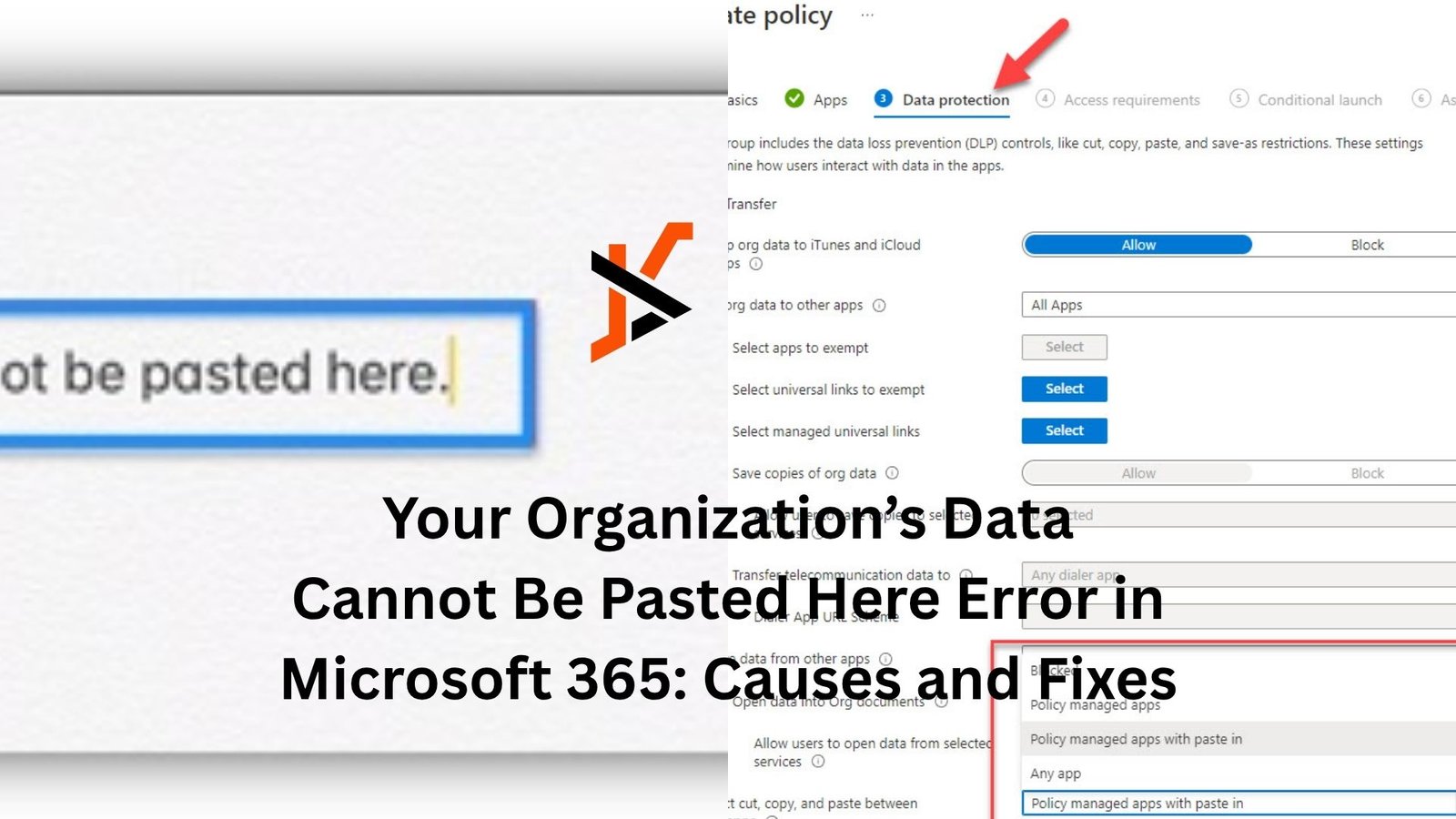
You’re copying something simple. A line of text, maybe a table, maybe just an email address. You hit paste… and suddenly you’re blocked.
“Your organization’s data cannot be pasted here.”
It feels random. Annoying. Sometimes even broken.
But here’s the thing. It’s not a glitch. It’s doing exactly what it’s supposed to do.
Once you understand why this message shows up, it becomes a lot less frustrating—and a lot easier to deal with.
What’s Really Behind This Error
Most people assume something went wrong with their app. Maybe Word froze. Maybe Excel is acting up. That’s usually not the case.
This message comes from built-in security rules in Microsoft 365, often managed through Microsoft Intune or similar tools.
Those rules control how company data moves around.
Think of it like a gatekeeper. If you try to move data from a “trusted” app (like Outlook or Teams) into something considered “unmanaged” (like a personal notes app or browser field), the system steps in and blocks it.
It’s not about stopping you. It’s about protecting sensitive information from leaking outside approved apps.
The Most Common Cause: Data Loss Prevention Policies
This is where things usually start.
Organizations use Data Loss Prevention (DLP) policies to control how data is shared. These rules decide what you can copy, where you can paste, and which apps are allowed to talk to each other.
If you’re copying content from a work email and trying to paste it into a personal app, the system might block it. Same thing if you try to move data between apps that aren’t both approved.
A simple example. You copy client details from Outlook and try to paste them into a personal WhatsApp chat on your computer. That’s a red flag for most organizations.
So the system blocks it. Instantly.
App Protection Policies Can Be Strict
Sometimes it’s not just about where the data goes. It’s about which apps you’re using.
With Microsoft Intune, companies can enforce app protection policies. These rules define which apps are “safe” and which aren’t.
If you’re using an unmanaged or outdated app, even for something harmless, the system might stop the paste action.
For example, pasting from a company-managed Outlook app into an older third-party text editor can trigger the error. Not because the data is dangerous, but because the destination isn’t trusted.
Outdated or Misconfigured Apps
Now let’s be honest. Not every case is about strict security.
Sometimes it’s just bad timing or outdated software.
If your apps aren’t updated, they might not align properly with your organization’s policies. That mismatch can trigger restrictions even when everything seems normal.
Same goes for misconfigured settings. A small sync issue or policy mismatch can cause the system to behave more aggressively than intended.
It’s one of those situations where everything looks fine on the surface, but something underneath isn’t lining up.
File Type and Format Limitations
Here’s a detail people often miss.
Not all content is treated the same.
Certain formats—especially rich content like tables, images, or formatted text—can trigger stricter controls. The system might allow plain text but block anything more complex.
You might notice this if copying works sometimes, but fails when the content includes styling or embedded data.
It feels inconsistent, but it’s actually deliberate.
Device Management and Compliance Rules
Your device matters more than you think.
If you’re using a company-managed laptop, there are usually layers of compliance checks running in the background. These checks make sure your device meets security standards.
If something falls out of compliance—like missing updates or disabled protections—you might see restrictions kick in.
Even something small, like logging in from a different network or using a personal device, can change how these rules apply.
A Quick Real-World Scenario
Picture this.
You’re working from home. You open your work email in Outlook, copy a chunk of text, and try to paste it into a browser-based tool you often use.
It fails.
You try again in Notepad. Still blocked.
But when you paste into Word, it works.
That’s not random. Word is considered a managed, trusted app within your organization. The browser tool isn’t.
Once you see it that way, the behavior starts to make sense.
How to Fix or Work Around It
Now the practical part. What can you actually do?
Start simple.
Try pasting into another Microsoft app like Word or Excel first. Then move it from there if needed. This often works because the data stays within approved apps initially.
If that doesn’t help, check whether your apps are updated. Even small updates can resolve policy mismatches.
Another option is to use approved apps only. If your organization provides a specific set of tools, sticking to them usually avoids these issues entirely.
If the problem keeps showing up in situations where it shouldn’t, it’s worth contacting your IT team. Sometimes policies are set too strictly and need adjustment.
What Not to Do
It’s tempting to look for shortcuts.
People try screenshots. Manual retyping. Even disabling protections if they can.
Let’s be honest. That might work in the moment, but it’s not a great idea.
These policies exist for a reason. They protect sensitive data—client information, internal documents, financial details.
Bypassing them can create bigger problems than a blocked paste.
When It’s Actually a Bug
Every now and then, the system gets it wrong.
You might see the error even when pasting between approved apps. Or it might appear inconsistently without any clear pattern.
In those cases, it could be a bug or a temporary sync issue.
Restarting apps, logging out and back in, or reinstalling the affected app can sometimes fix it. Not glamorous, but it works more often than you’d expect.
The Bigger Picture
This error is one of those things that feels like friction in your workflow.
But step back for a second.
Organizations deal with serious risks around data leaks. One accidental paste into the wrong place can expose sensitive information.
So these controls are designed to reduce that risk, even if they occasionally slow things down.
It’s a trade-off. Convenience versus security.
And most companies lean toward security.
Final Thoughts
The “Your organization’s data cannot be pasted here” message isn’t random, and it’s not your device acting up.
It’s a guardrail.
Once you understand that it’s tied to security policies—especially those managed through tools like Microsoft Intune—the behavior becomes predictable.
And when something becomes predictable, it becomes manageable.
Next time it shows up, you’ll know what’s happening. More importantly, you’ll know what to try instead of getting stuck.
That alone makes a big difference.
