

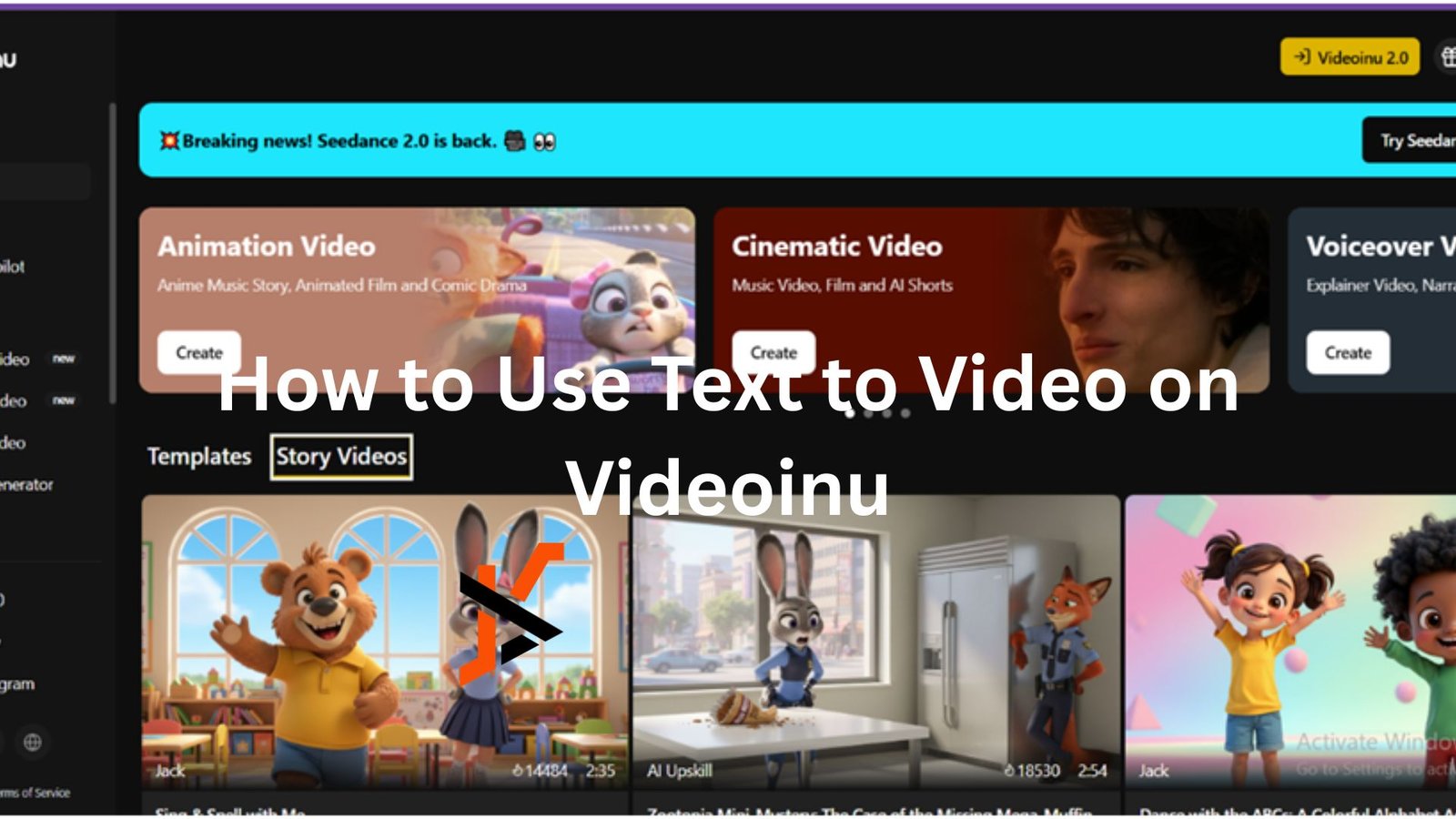
Text to video on Videoinu is a simple way to turn an idea into a video without filming anything. You write a prompt, add a little style and motion, and generate a clip from text. Veo is one of the models available in this workflow, so it can be a good option if you want cleaner, more polished results from a simple scene idea.
That makes this useful for quick concept tests, short social clips, and early story scenes. It can also work well if you are looking for one of the best ways to turn simple text prompts into short videos without dealing with a heavy editing process.
How to Use Text to Video on Videoinu
Step 1: Start with one clear prompt
Keep the first idea simple. A short prompt usually works better than a long paragraph.
For example:
A girl walking through a rainy neon street at night, cinematic lighting, slow camera move.
That is enough for a first test.
Step 2: Add mood, style, and motion
After the basic scene, add a few details that shape how the video should feel. Focus on mood, camera feel, and motion instead of listing every object in the frame.
You can guide the result with words like cinematic, soft, dramatic, animated, slow-moving, or realistic. That usually works better than overexplaining the scene.
Step 3: Keep the scene structured
A clear subject and a clear action usually give better results. This is also where Veo fits naturally. If you want to try a Veo text to video workflow, it helps to keep the prompt clean and organized.
A simple structure like one subject, one action, and one mood is usually enough for a strong first result.
Step 4: Generate one short clip first
Do not try to get the final version on the first run. Generate one short clip and check the basics.
Ask yourself:
- Is the scene easy to understand?
- Does the mood feel right?
- Does the motion match the idea?
If the result feels off, simplify the prompt or adjust one detail at a time.
Step 5: Refine from there
Once the first clip is close, make small changes. You might soften the lighting, simplify the scene, or adjust the motion. Making small adjustments is often more effective than overhauling everything.
Once one short clip works, it becomes much easier to build the next one.
Tips for Better Results
Keep your first prompt short. Focus on one visual idea. Add mood and motion naturally. If the output feels messy, simplify before adding more detail.
If you want to test different models, Veo is a natural one to try in a text to video setup where you want a cleaner and more polished visual style.
Final Thoughts
The easiest way to use text to video on Videoinu is to start small. Write one clear prompt, test one short clip, and improve it step by step. That first result usually tells you very quickly what to do next.
