

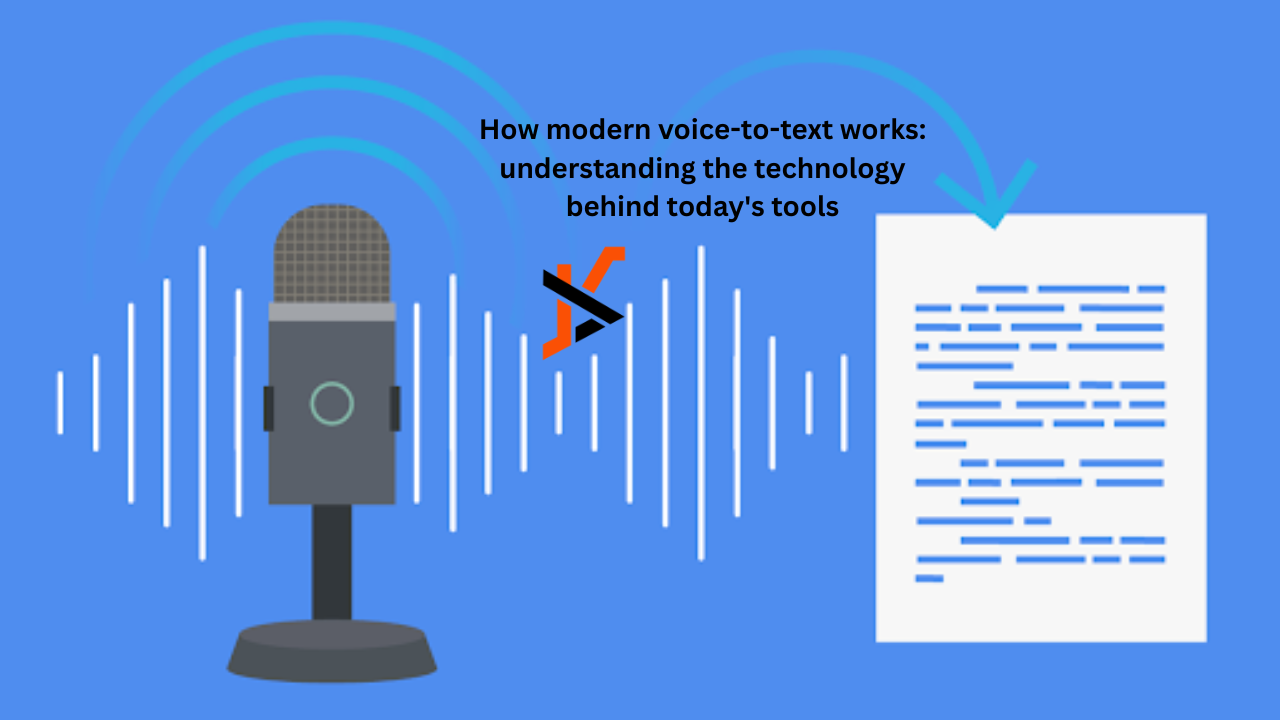
Have you ever wondered what happens when you hit “record” on a voice-to-text app? The technology powering automatic speech transcription has become sophisticated enough to handle real-world audio—thick accents, background noise, multiple speakers—with surprising accuracy. But what’s actually under the hood, and how do you know which tool will work for your use case?
The basics: how ASR actually works
Voice-to-text is built on Automatic Speech Recognition (ASR)—a branch of artificial intelligence trained to convert sound waves into text. Modern systems like OpenAI’s Whisper use deep neural networks that have ingested thousands of hours of human speech across multiple languages and audio conditions. Here’s the simplified flow:
- Audio input: You record or upload a file (MP3, WAV, M4A, MP4, etc.).
- Feature extraction: The system breaks the audio into tiny time slices and converts each slice into mathematical features—essentially a numerical fingerprint of the sound.
- Model prediction: A trained neural network compares those features to patterns it learned during training and outputs the most likely text that matches the audio.
- Post-processing: Punctuation gets added, common errors get corrected, and the raw transcript is cleaned up into readable text.
The speed of this process depends on whether the system works in real-time (converting as you speak) or in batch mode (waiting for the entire file to process). Real-time transcription needs to trade some accuracy for speed. Batch processing can afford to be more thorough, which is why uploading a recording generally yields better results than live dictation.
Accuracy: what “95% accuracy” actually means
When vendors claim “95% accuracy,” they’re usually referring to the Word Error Rate (WER)—the percentage of words that are transcribed incorrectly. That metric sounds clean until you realize it depends heavily on the audio quality and language.
A clean, studio-recorded conversation in English will hit 95%+ accuracy on most modern systems. A Zoom call with three people talking over each other, recorded on a phone microphone in a coffee shop, will land somewhere between 70% and 85%. The neural network is doing its best with incomplete information, just like a human would struggle to hear everything in a noisy environment.
The real accuracy test isn’t a marketing number—it’s running your own audio through the system’s free trial and checking the actual output. Ten minutes of testing beats any spec sheet.
Speaker identification: knowing who said what
One feature that separates basic transcription from usable transcripts is speaker diarization—the ability to detect when the speaker changes and label who’s talking. Without it, you get a wall of text. With it, you get something you can actually use in a meeting:
Speaker 1: We need to finalize the timeline by Friday.
Speaker 2: That works if we get the design review done by Wednesday.
Diarization works by analyzing the acoustic properties of each speaker’s voice—pitch, tone, rhythm—and clustering similar patterns together. It’s not perfect. Similar-sounding speakers confuse it. One person on mute who jumps back in gets misidentified. But it’s good enough to save hours of manual cleanup on a recorded call.
Output formats: what you can do with a transcript
Modern tools don’t just give you text. They give you choice. Most offer:
- TXT / DOCX / PDF: Basic text formats for sharing or archiving.
- Markdown / HTML: Structured formats that preserve sections and emphasis.
- SRT / VTT: Subtitle formats with timestamps, for video.
- JSON: Machine-readable format for integrations.
Timestamps on every sentence are table stakes now. If you need to point someone to a specific moment in a 90-minute recording, you should be able to link directly to the 47-minute mark, not search through a wall of text.
Time limits: does your tool have a ceiling?
Free tiers usually cap transcription length per file. Otter.ai’s free plan maxes out at 30 minutes per file and 300 minutes per month. Many tools split longer files, which adds friction. A tool that handles three-hour recordings without splitting is worth the cost difference if you’re transcribing conferences or lectures.
Some systems claim “unlimited,” but the real constraint is usually time-to-completion. A three-hour recording takes 10–20 minutes to process on most cloud systems. That’s acceptable. Some consumer apps take hours. Check the actual processing speed, not just the claimed file-size limit.
Putting it together: choosing the right tool for your needs
Now that you understand the moving parts, here’s what to evaluate:
- Language support: Does your use case involve other languages? Most tools handle 50+ languages now, but some are stronger in specific languages than others. If you need Mandarin, test with real Mandarin audio.
- Speaker labels: Essential for meetings and interviews. Nice-to-have for solo voice memos.
- Processing speed: If you’re using this live (meetings, interviews), real-time is important. If you’re transcribing archive files, a few minutes of processing is fine.
- Output formats: Make sure the tool exports to something compatible with your workflow.
- Time limits: If you regularly transcribe anything over 30 minutes, verify the tool handles it.
- Privacy: If the audio contains sensitive information, check whether the service stores recordings and for how long.
A tool like Vomo’s voice to text tool hits most of these requirements: it handles 50+ languages, includes speaker labels by default, processes up to three hours without splitting, offers multiple export formats, and doesn’t store recordings beyond the processing window. It’s a good example of what a modern, unconstrained tool can do.
The right choice depends on your specific mix of needs. But understanding the technology underneath—what’s actually happening when you press “transcribe”—makes it much easier to judge whether a tool will work for you.
FAQ
Q: Why does voice-to-text sometimes mispronounce my name or technical terms?
A: The system was trained on general speech patterns, not your specific vocabulary. Most tools let you add a custom glossary of terms and proper nouns it should recognize. If your domain has very specific terminology (medical, legal, highly technical), running a test will show whether the tool needs help.
Q: Is real-time transcription as accurate as uploading a file?
A: No. Real-time systems sacrifice accuracy for speed. They have less context about what comes next. Uploading typically yields 5–15% better accuracy because the system can see the whole audio and context. Use real-time for convenience; use batch processing for accuracy.
Q: What’s the difference between transcription and translation?
A: Transcription converts speech to text in the same language. Translation converts it to a different language. Modern tools often bundle both—transcribe in the original language, then translate to English or another target language. The combined accuracy is lower than transcription alone, so expect some loss in translation (literally).
Get started
The technology is mature enough that the limiting factor is no longer whether transcription works—it’s whether it works for your specific audio. If you’re considering a tool, use the free trial with actual content you need transcribed. Ten minutes of hands-on testing is worth more than a vendor comparison chart.
