

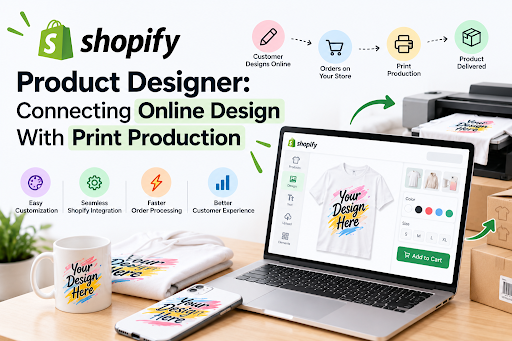
Shopify’s own developer documentation contains a sentence every custom-print merchant should read twice: “Your app shouldn’t rely on receiving data from Shopify webhooks.” Webhooks are the messages Shopify sends to other software when something happens, such as a new order. The documentation is honest that delivery isn’t always guaranteed, and it tells developers to run reconciliation jobs that go back and check.
That matters a lot more for a custom mug than for a stock one. When a shopper buys a catalog item, a missed message delays a shipment. When a shopper designs a product in the browser and pays for it, a missed message can mean a paid order with no artwork anywhere near a printer.
Most conversations about a Shopify product designer focus on the canvas, meaning the fonts and the 3D preview. That’s the half customers see. This piece is about the other half, what happens to a design between the moment someone clicks Buy and the moment ink touches the product.
What Shopify Actually Stores When Someone Designs a Product
Shopify wasn’t built to carry artwork through an order. What it carries is text. Its mechanism for customization is called line item properties: name-value pairs attached to a single item in the cart, captured through form fields named properties[…]. In the Admin API, the equivalent field on an order line is described as “a list of attributes that represent custom features or special requests.” Think engraving text or a gift note.
There’s one useful trick. Shopify’s Liquid documentation says you can add an underscore to the start of a property name “to hide it from customers at checkout.” The customer never sees it, but the merchant’s admin still does.
So a design app doesn’t put the design into the order. It stores the design on its own servers and writes a reference into a property, usually a design ID or a link. The order holds the pointer. The app holds the artwork.
That’s a reasonable architecture, and it’s the common pattern. But it has a consequence buyers rarely ask about: your production record now depends on a third party keeping that design available. Ask any vendor how long saved designs are retained and what happens to old orders if you cancel the subscription. A reorder eighteen months from now needs that file.
The Print File Is Usually Made After the Sale
Personalization apps on the Shopify App Store describe the handoff in similar terms. Zakeke’s listing says “Every order is automatically converted into a production-ready file for print, engraving or laser cutting” and that the finished design is “linked straight to the Shopify order.” Teeinblue lists “Auto generate production files” and pushes orders to print partners including Printful and Gelato.
Notice the timing. The production file generally doesn’t exist while the customer is designing. The browser holds a lightweight version of the layout, good enough for a preview. After payment, the app re-renders that layout at physical size and outputs a file a press can run.
Re-rendering has limits, though. It can redraw text and vector shapes sharply at any size. It can’t add detail to a 600-pixel photo the customer uploaded from a phone. That check has to happen during design, with a visible warning, because after checkout the only fix is an email asking the customer to try again.
Print-Ready for Which Printer?
Here’s where the common description of these tools breaks down. Vendors say their output is “print-ready,” as if that were one standard. It isn’t.
Printful’s published guidance for direct-to-garment printing asks for files in the sRGB color profile, specifically sRGB IEC61966-2.1, at a minimum of 150 DPI, saved as a PNG with a transparent background. AlphaGraphics’ 2026 guide to commercial print files asks for the opposite on color: CMYK, 300 pixels per inch at final size, a 0.125-inch bleed on every edge and a flattened PDF/X-1a.
Both are correct for their equipment. A file built to one spec is wrong for the other.
So the real design-to-production question isn’t whether the app outputs print-ready files. It’s whether the app knows, at the moment it generates the file, which machine will run the job. A Shopify store selling both custom tees and business cards needs a mapping from each product to a production method, and from each method to a file profile. Without that mapping, someone in prepress opens every file and converts it by hand, which is the exact job the software was supposed to remove.
Is that mapping hard to build? Not technically. It’s hard organizationally, because the person setting up products in Shopify is rarely the person who knows the press.
Webhooks Are a Doorbell, Not a Conveyor Belt
Back to that warning in Shopify’s documentation. Its troubleshooting page spells out the mechanics. An app gets five seconds to respond. If it misses, Shopify retries the delivery up to eight times over a four-hour period, and after the eighth failure it stops trying and removes the subscription altogether. Messages aren’t guaranteed to arrive in order either.
For most apps, that’s fine. For production, it means a quiet failure mode. An app’s server has a bad afternoon, a handful of orders never trigger file generation, and nobody notices until a customer asks where their shirt is.
The fix isn’t exotic. A scheduled job compares paid Shopify orders that carry a design property against the files production has actually received, and flags any gap. Shopify recommends exactly this pattern. At low volume, a person checking the day’s order list against the print queue does the same job, and honestly that’s a perfectly good answer for a shop doing twenty custom orders a week.
Where the File Lands on the Production Side
If a print partner fulfills the order, the file usually travels by API, and the partner’s own requirements decide the spec. If you print in-house, the file has to reach a machine, and the most common route is a watched folder. A RIP or prepress workflow monitors a directory and picks up anything that lands in it. Software such as a hot folder can apply color conversion and preflight checks on the way through, then route the file by product or substrate.
One detail saves more time than any feature: name every file after the Shopify order number and line item, not the app’s internal design ID. The operator holding a misprinted tote at 4 p.m. needs to find the order in seconds.
This is the part we spend most of our setup time on at PrintXpand. Our Shopify product designer attaches print files to the Shopify order, but the useful work is agreeing, product by product, where each file goes and in what format before the first order arrives.
What to Ask Before You Install Anything
A Shopify product designer demo will show you the canvas. Ask to see an order instead. Place a test order, open it in the Shopify admin and look at what the line item actually contains. Then ask where the production file is and what color profile it uses. And ask how the vendor would know if it never arrived.
This won’t apply to every store. If you sell a few personalized items and lay out each one yourself, a simple text-field app and a careful person may be all you need.
Across the 350+ print businesses we work with, the projects that go smoothly tend to start with a production manager in the room on day one, not after launch.
About the Author
Pratik Shah is Creative head at PrintXpand, a cloud and on-premises web-to-print and print automation platform used by 350+ print businesses across 40+ countries. He works with print shops and custom-product brands on the step most online stores skip: getting a customer’s design from the browser to the press in the right format, with the right order attached. Learn more at printxpand.com.
